
When I started my WordPress blogging journey in 2017, I was a complete beginner in SEO. I made many wrong decisions simply because I didn’t know any better.
I followed popular advice, chased green scores, and focused on things that didn’t really matter. Those mistakes slowed my growth and wasted a lot of time.
Over the years, I learned what actually works by testing, failing, and fixing my own errors. That experience completely changed how I optimize my blog today.
In this guide, I’ll share the exact process I now follow using Rank Math SEO, so you can avoid the same mistakes I made and get better results faster.
Quick Access
ToggleHow to install & activate Rank Math SEO Plugin
You can download and install the RankMath plugin in two different ways: first, you can download it from the RankMath official website, and second, you can install it from your WordPress dashboard.
But I’m going with the RankMath official website method. First, you need to click here to land directly on the RankMath website.
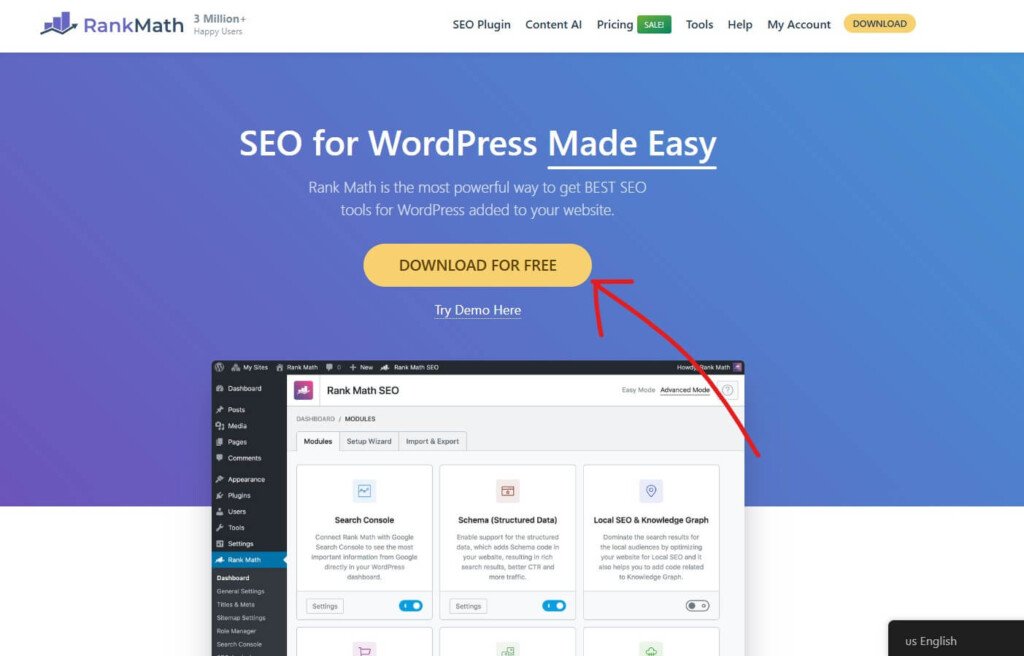
After coming to the RankMath website, you need to click on the “Download For Free” button.
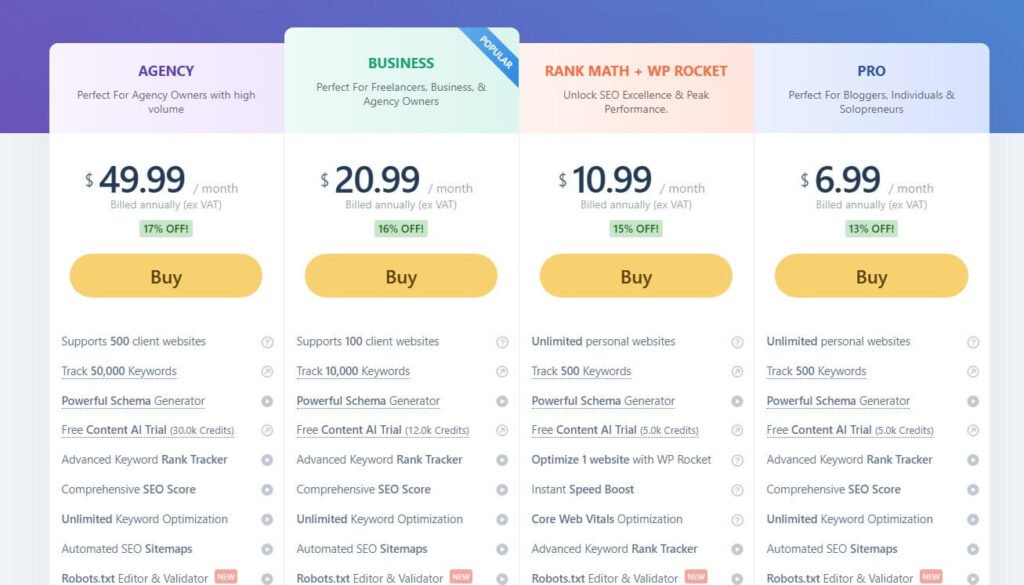
After clicking on the “Download For Free” button, you will be redirected to the RankMath pricing page. Currently, Rankmath offers 3 pricing plans for all of their users.
The most affordable Pro plan comes at $6.99/month and offers you the ability to add an unlimited personal website, track up to 500 keywords, a powerful schema generator, Free content AI (Up to 5K credits), and more.
Business plan comes at $20.99/month and allows you to add 100 clients’ websites, track 10,000 keywords, and more. The most expensive Agency plan comes with $49.99/month and allows you to add 500 clients’ websites, track 50,000 keywords, and more.
But RankMath also offers a Free plan for beginner users, which is good enough to start with. To get the free version of RankMath, click on the “My Account” text.
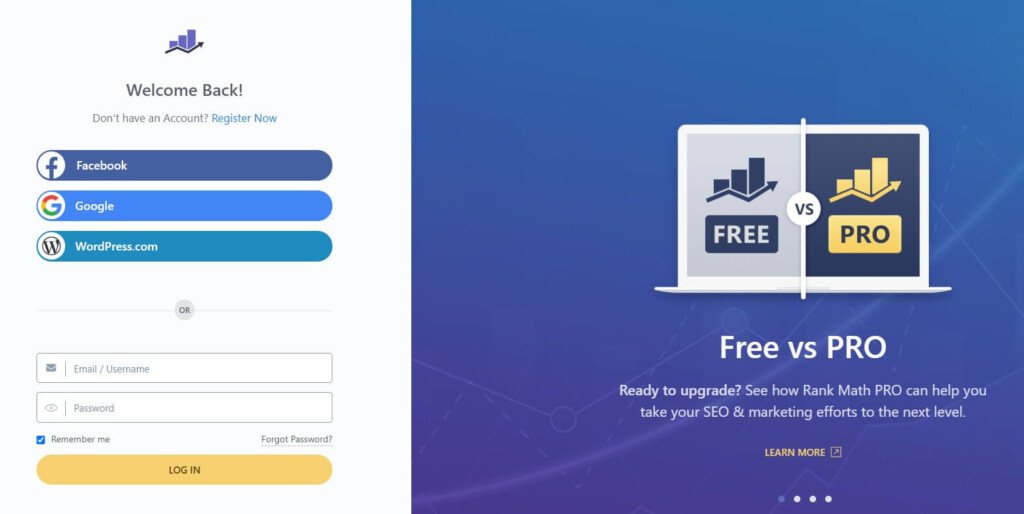
Now, you need to create your free RankMath account. You can create your free RankMath account in four different ways:
- Using Direct Facebook login
- Using Direct Google login
- Using a direct WordPress.com login
- Using your email address

After creating the free account, click on the “Download” button to download the free version of RankMath.
After downloading, you can install it on your WordPress website by following these simple steps:
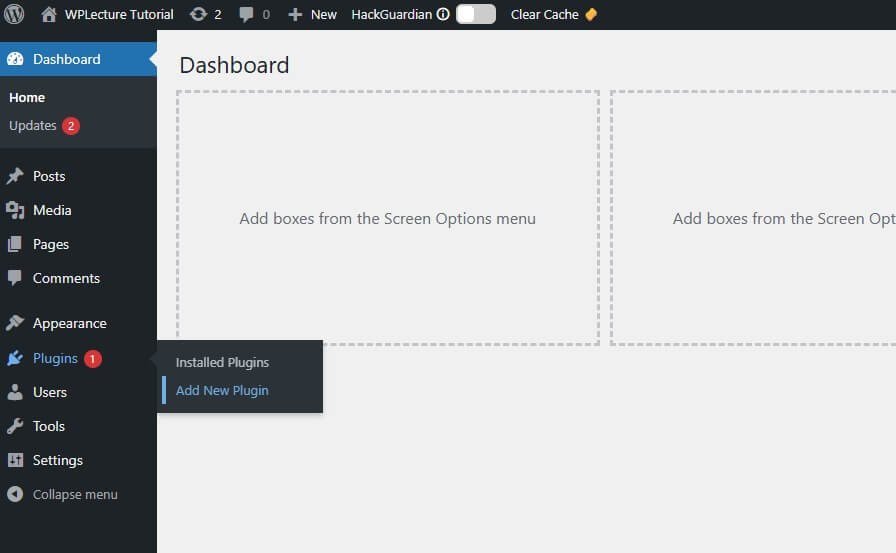
When the download process is complete, then you need to login to your WordPress dashboard and hover on plugins and click on Add New Plugin.

Then, this page will open. Now you need to click on the Upload plugin text.

Now, you need to drag and drop the RanMath plugin or choose the plugin for installation. After choosing the Rankmath SEO plugin, you need to click on the Install Now button.

When the installation process is complete, you need to click on the Activate button.
After activating the plugin, you need to complete some important settings to make RankMath work perfectly on your WordPress website.
How to Set Up Rank Math SEO Plugin For Better Results

After installing and activating the Rank Math SEO plugin, you’ll come to the Rank Math setup wizard page. Now you need to create a free account to continue with the Rank Math SEO plugin.
But you can also skip this step.
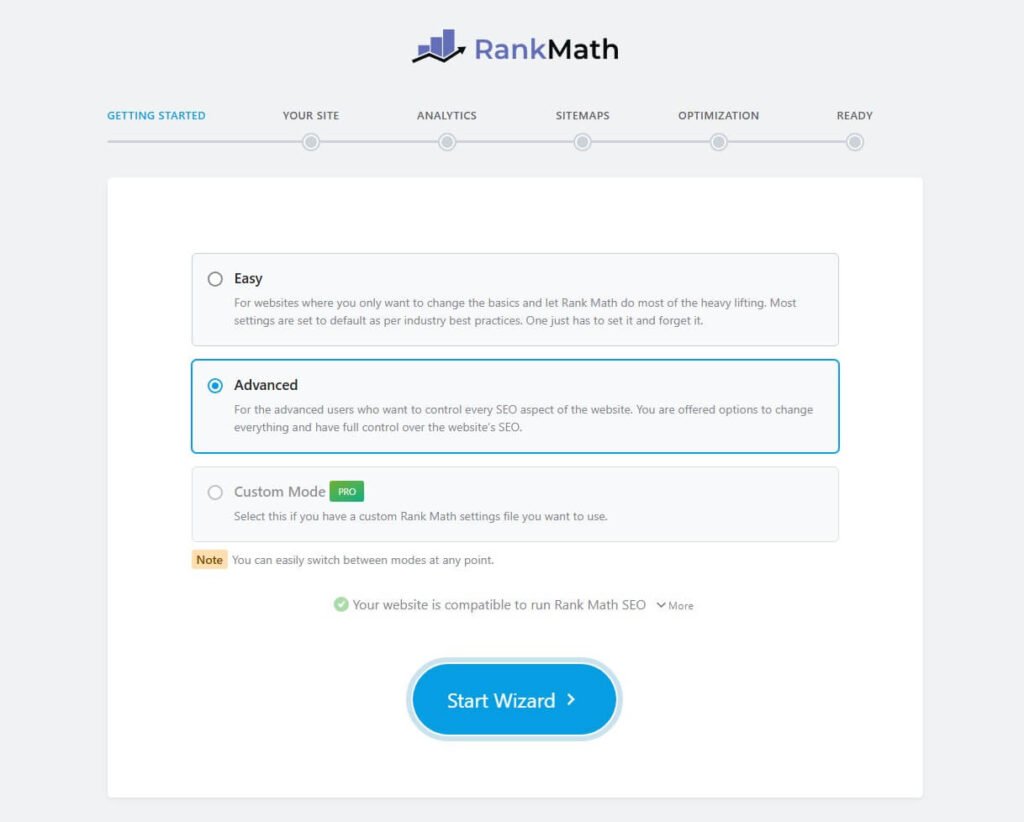
Then choose your Rank Math Setup wizard. You can go with three different ways: Easy, Advanced, and Custom Mode.
But custom mode is only available for the pro user. If you’re a free user, then go with Easy or Advanced mode and click on Start Wizard.
Then our final part is to switch from the other SEO plugin to the Rank Math SEO plugin.
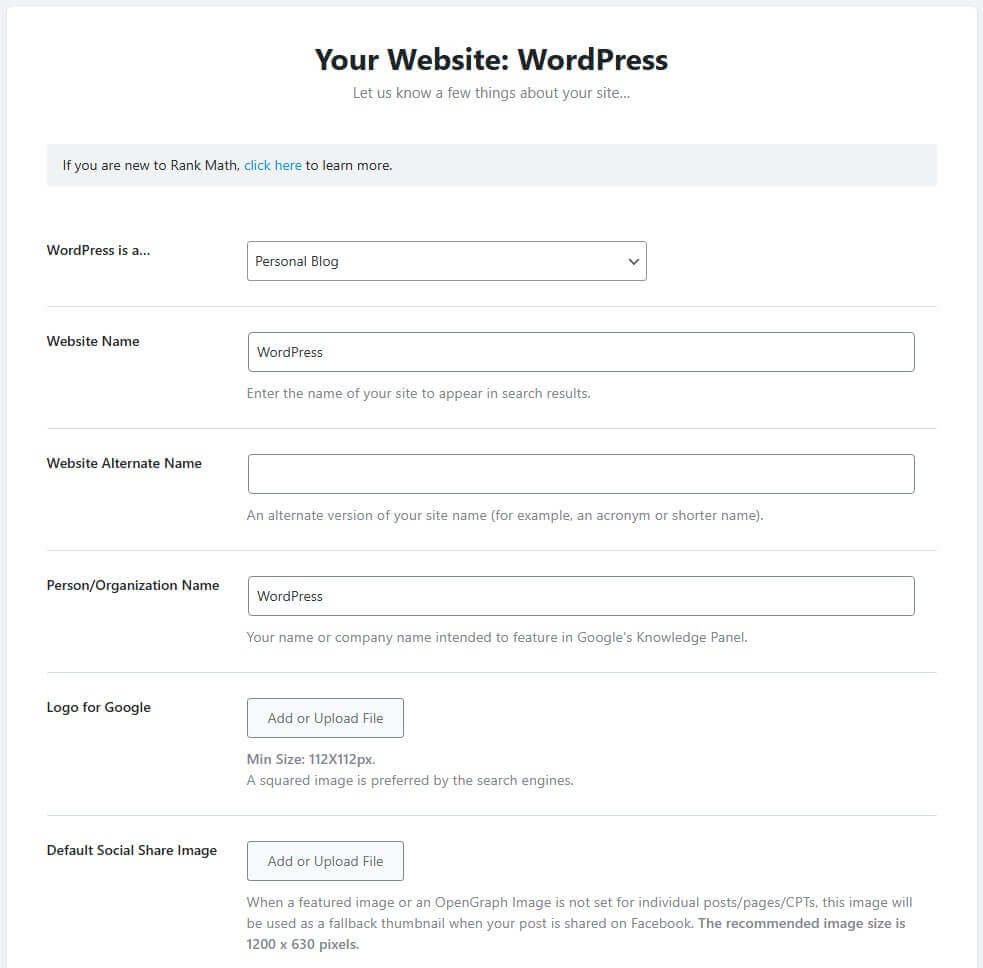
Then add some personalised info about my website, like my WordPress site is a Blog/eCommerce/agency/blog, website name, website alternative name, Logo for Google, and social share images.
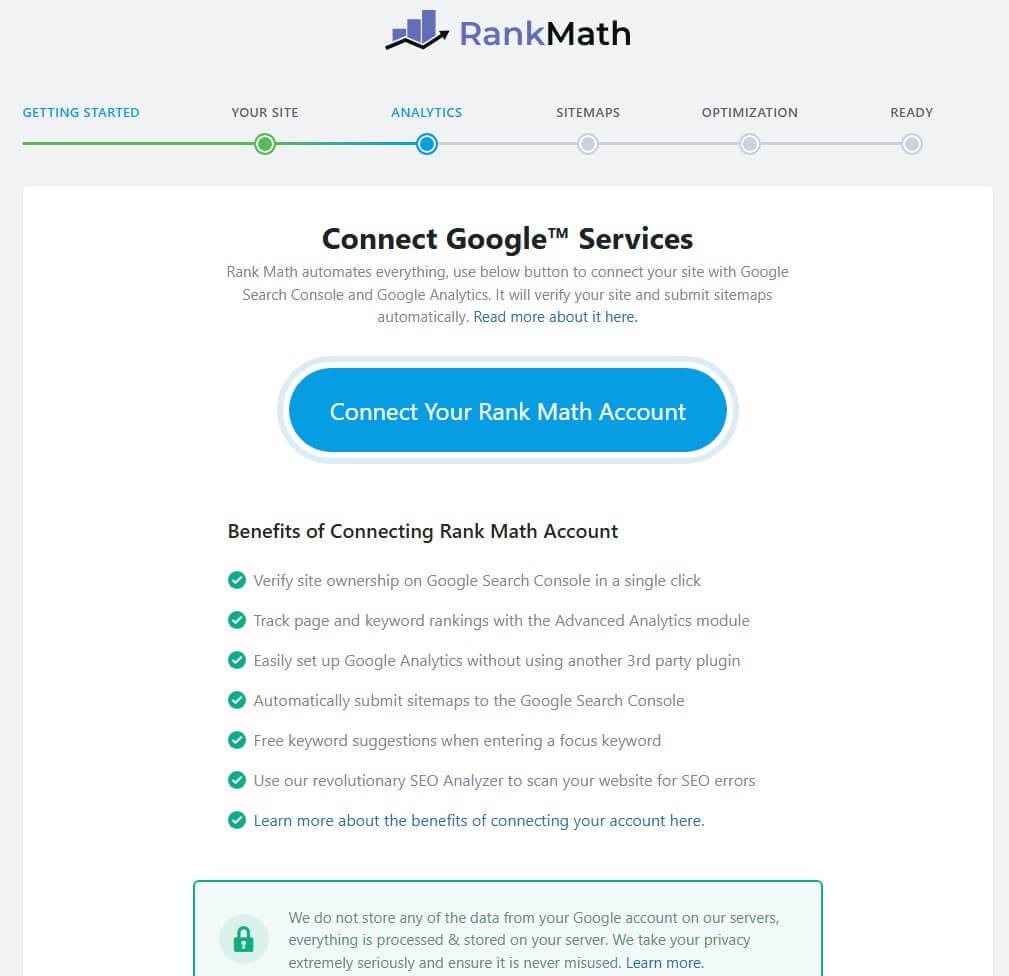
Now you need to connect your Google account with RankMath so you can easily see your analytics data on the RankMath dashboard. Also, you can skip this step if you don’t want to connect with a Google account.

Now you need to set up your sitemap, and Rank Math allows you to use an HTML sitemap for your website. But if you are not comfortable with the advanced settings, then I suggest skipping this step.

After completing all of those previous settings, you’ll come to the Optimization table. On this tab, you need to enable some of the useful settings like Noindex Empty category, Nofollow External links, and open External Link in a new tab.
But you can keep all of this as it is.

Now that you’re ready to go with the RankMath plugin, click on the Return to Dashboard to Land your WordPress Dashboard. RankMath’s Advanced SEO features can help you to get the Best SEO score on your website so you can rank higher in search engines.
RankMath Dashboard Overview

RankMath offers everything you need get the best SEO Rank on all over the search engines. You can optimize your content, track your rankings and backlinks, monitor 404 errors and much more from the RankMath dashboard.
Let’s take a look at some of the key features of the RankMath dashboard:
- Content AI
- 404 Monitor
- ACF(Advanced Custom Field)
- AMP(Advanced Mobile Pages)
- Advanced Analytics
- bbPress
- Image SEO
- Instant Indexing
- Link Counter
- Local SEO
- News Sitemap
- Podcast
- Redirections
- Schema (Structured Data)
- Role Manager
- SEO Analyzer
- Sitemap
- Video Sitemap
- Google Web Stories
- WooCommerce SEO and much more premium features
How to Research Keywords for your Website
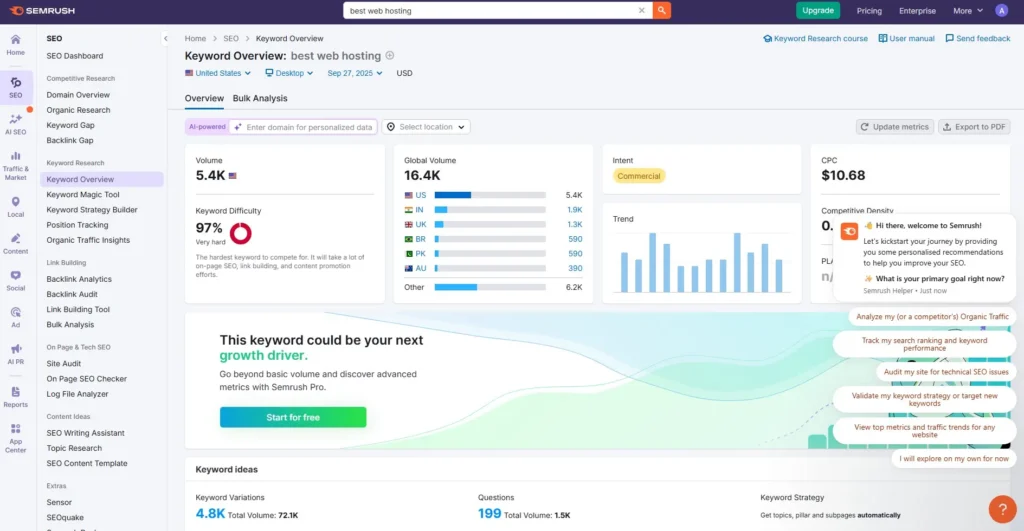
When I first tried SEMrush for keyword research, it made things a lot clearer. Instead of guessing which keywords to use, I could actually see search volume, difficulty, and intent. That helped me avoid wasting time on keywords that were too competitive.
I usually start with one main keyword idea and then expand it using SEMrush tools. The best part is that it also shows me what my competitors are ranking for, which gives me new ideas I hadn’t even thought about.
Here’s the simple process I follow step by step:
- Open Keyword Overview and check the data for your main keyword.
- Use the Keyword Magic Tool to find long-tail and related keywords.
- Try the Keyword Gap Tool to compare your site with competitors.
- Save the best keywords in a list for future content planning.
- Track performance inside SEMrush to see how rankings improve over time.
How to Optimize Posts with Rank Math SEO Plugin
Want to optimise your page or post in a better way to get the best SEO score and a higher rank on search engines? Here are some of the tips that can help you to use the RankMath plugin in a better way:
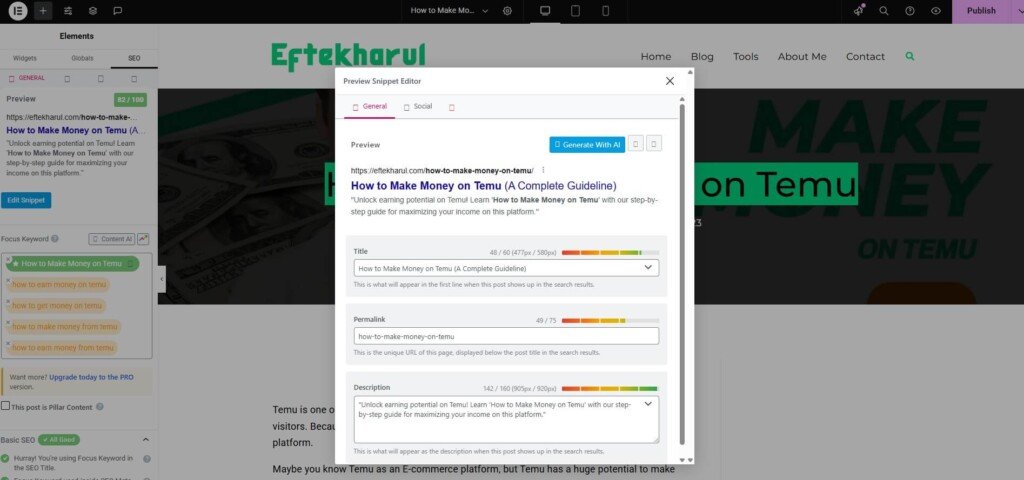
First, you need to open the post/page which you want to optimise. You can use the RankMath SEO box to optimize your content for search engines.
After opening your post/page, you need to click on the Edit Snippet button, and this kind of popup will appear on your screen.
Now, carefully write the SEO Title, permalinks, and description. You must need to add your focus keywords on your SEO title, permalinks, and description to get better search engine results.

Now, here are some of the additional SEO features you need to follow to get the best SEO results.
- Use your focus keywords on your SEO title
- Use focus keywords on your SEO description
- Use keywords on your URL
- Focus keywords must need to appear on the first 10% of your content
- Focus keywords must be found on your content
- Your content needs to be good enough
- Focus keywords need to appear on your sub headings
- Use focus keywords as an image alt tag
- You need to maintain your focus keywords’ density
- URLs don’t cross the maximum length
- Linking with external link
- Must add an internal link
- Using content AI to optimise your post/page
How to Submit Your Website to Different Search Engines
Let us teach you how you can submit your website to Google search console so you can monitor your site’s search performance and fix issues as they arise.
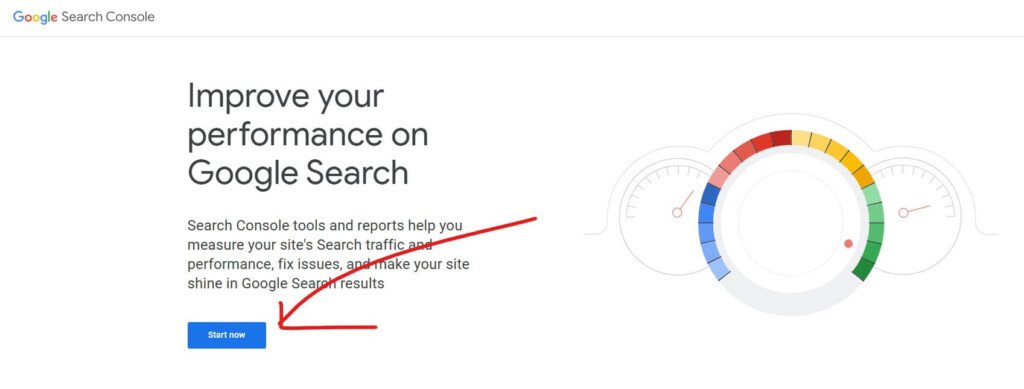
First, you need to search for Google Search Console on your browser and open the first link & then you’ll come to this page.
Now click on the Start Now button to continue with the Google Search Console.
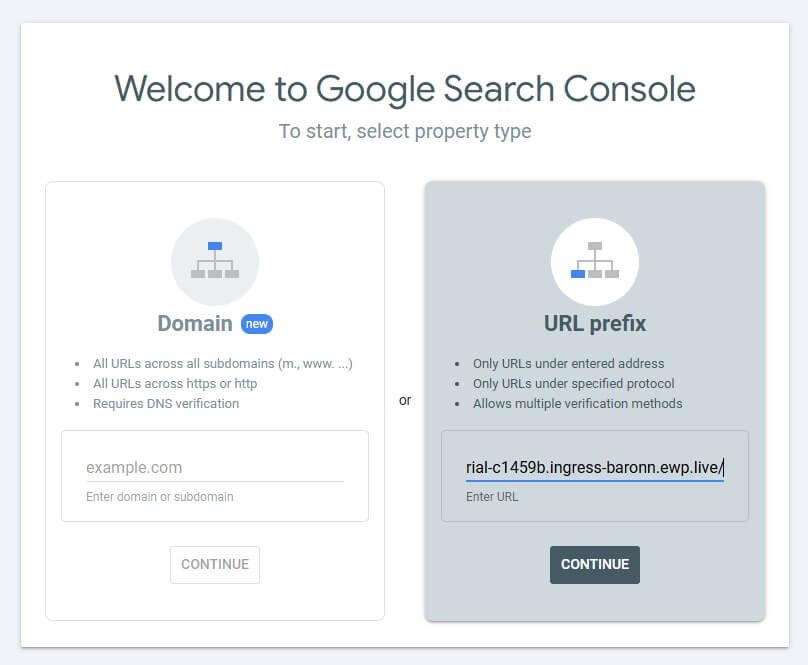
Then this kind of pop-up will appear on your screen. Now you need to click on the URL prefix, paste your website URL and click on the continue button.

Now, this popup will open; click on the first arrow to expand the HTML tag. After expanding it, click on the Copy button to copy the HTML tag.
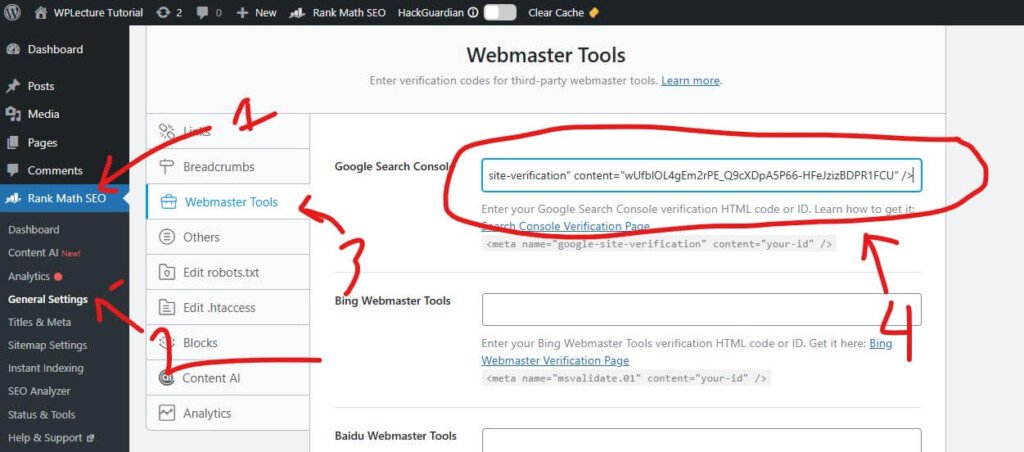
Now, you need to log in to your WordPress dashboard and go to the RankMath’s General Settings, then go to the Webmaster tools. And paste the HTML tag on the Google Search Console field & click on the Save Changes button.
After saving your changes, come back to the search console page and click on the Verify button.
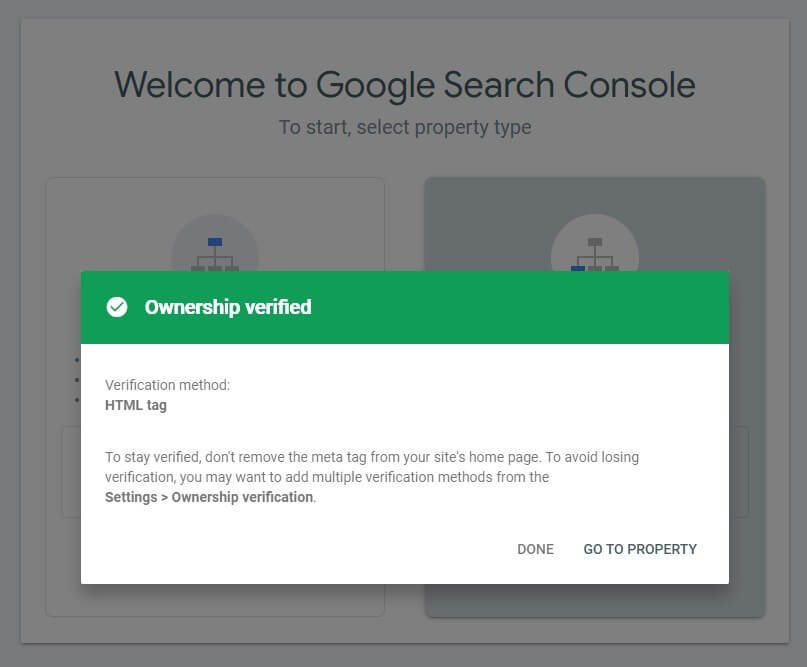
Now you’ll see this kind of popup that your site is successfully verified. Click on the Go To Property button to see more details about your website.
That’s it! Now you have successfully submitted your website to Google Search Console and can start monitoring your site’s performance. You can also use the advanced features of RankMath to track your rankings and get tips for improving your SEO score.

Link Building to Improve Rankings
Link building is one of the most important parts of SEO, but beginners often ignore it. Without strong links, even well-optimized content struggles to rank.
Internal links help search engines understand your site structure and pass authority between pages. Using Rank Math SEO, you can easily track internal and external links with the Link Counter feature.
Start by linking related blog posts naturally within your content. Focus on relevance, not quantity, and avoid forced or spammy links.
External backlinks are also important because they build trust and authority. You can earn them by publishing helpful content, doing guest posts, and sharing your articles where your audience already exists.
Link building takes time, but when done correctly, it improves rankings, crawlability, and long-term traffic growth.
Internal Linking: Connecting Your Content the Right Way
Internal linking helps search engines understand how your blog posts are related. It also guides readers to more useful content on your website.
When I was a beginner, I ignored internal links completely. Later, I realized they play a big role in rankings and user experience.
You should link related blog posts naturally inside your content. Avoid forcing links and always keep them relevant to the topic.
With Rank Math SEO, the Link Counter feature shows how many internal links each post has. This makes it easier to balance links across your blog.
Good internal linking improves crawlability, spreads link value, and keeps users on your site longer.
Final Thoughts
SEO is not something you do once and forget. It’s an ongoing process that improves over time with the right strategy and tools.
One of the biggest lessons I learned is the importance of updating old posts regularly. Refreshing content, improving structure, and optimizing with Rank Math SEO can significantly improve rankings.
Search engines reward websites that stay active and relevant. Even small updates can bring new traffic and better visibility.
If you stay consistent, keep learning, and update your content often, your WordPress blog will grow steadily over time.